How the pin-up was made
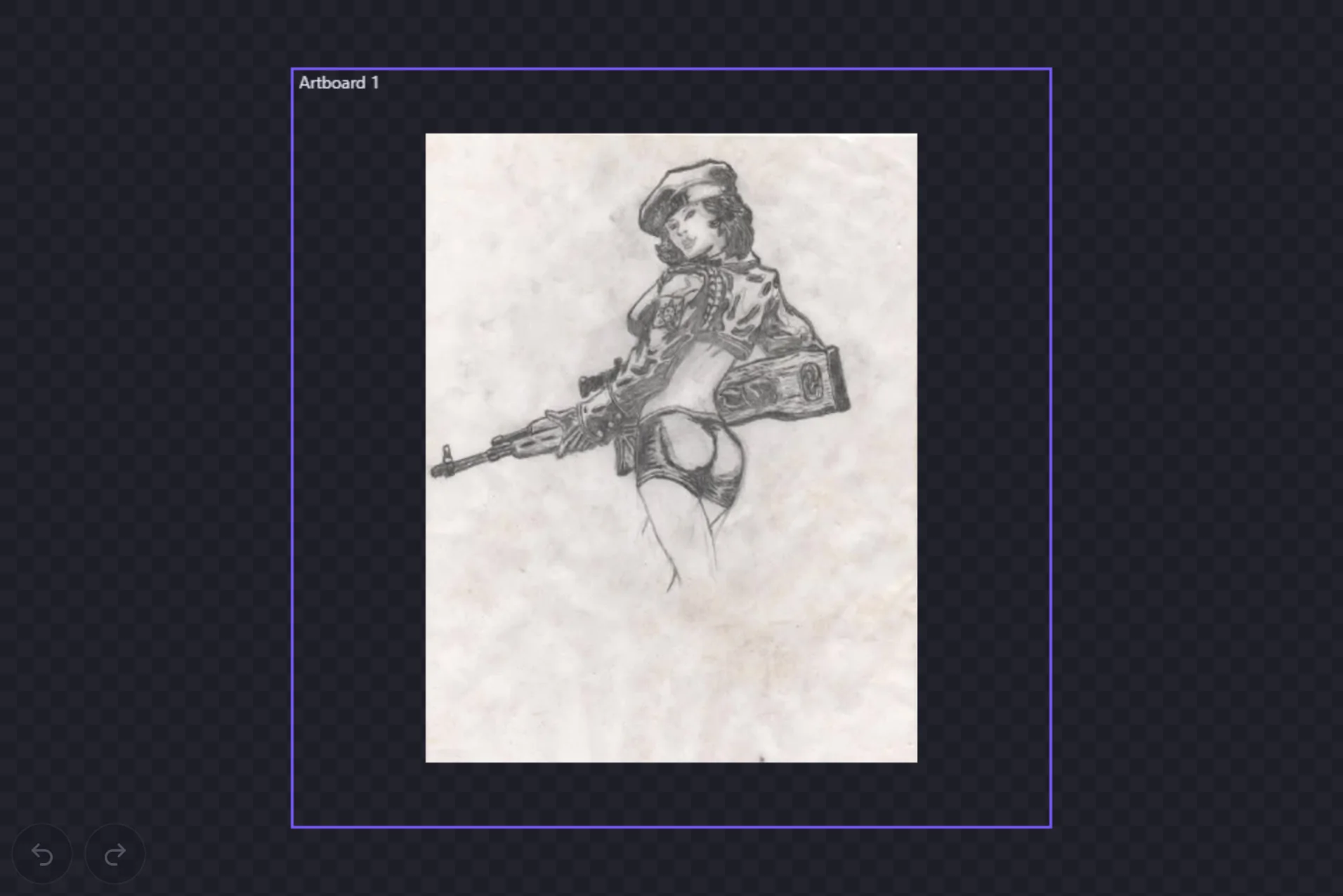
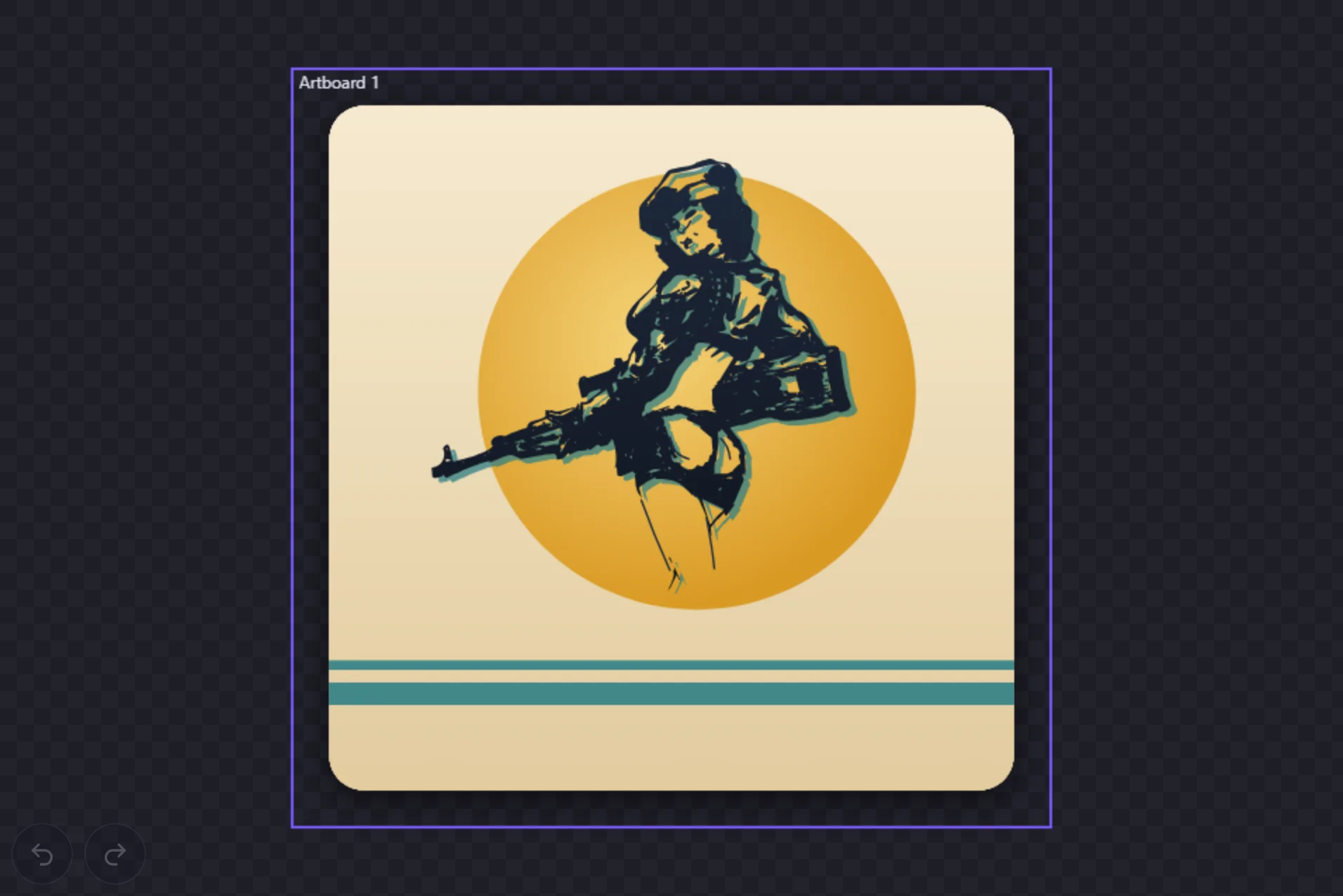
A pencil sketch from our founder's sketchbook, turned into the poster in the tutorial. These are the steps as they actually happened, including the first attempt that did not work. The only lines that did not come from the trace are in step 4, and they live on their own layer so you can see exactly what was traced and what was added.
Start from the sketch
The source is a photo of a pencil drawing, only 563 × 720 pixels. Put it on the canvas with Import image in the tool rail, or drag the file onto the canvas. Then select it with the Selection tool (V).
Trace it, with the right two settings
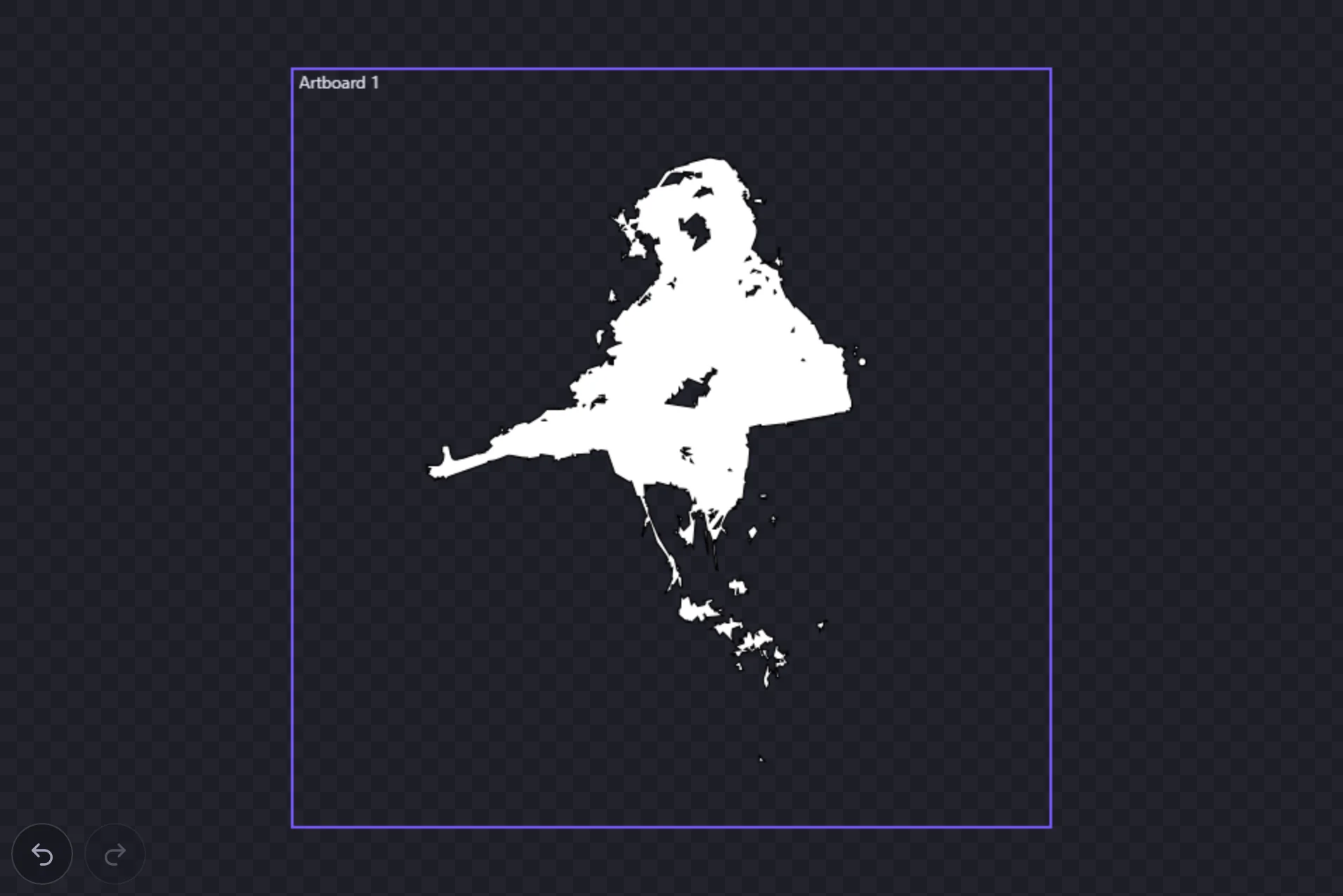
With the image selected, the side panel shows Trace to Vector. The first attempt used the defaults: Mode Auto and Contrast 32. The pencil shading is dark enough that almost all of it cleared that threshold, so the figure came back as one near-solid silhouette and the face was gone.
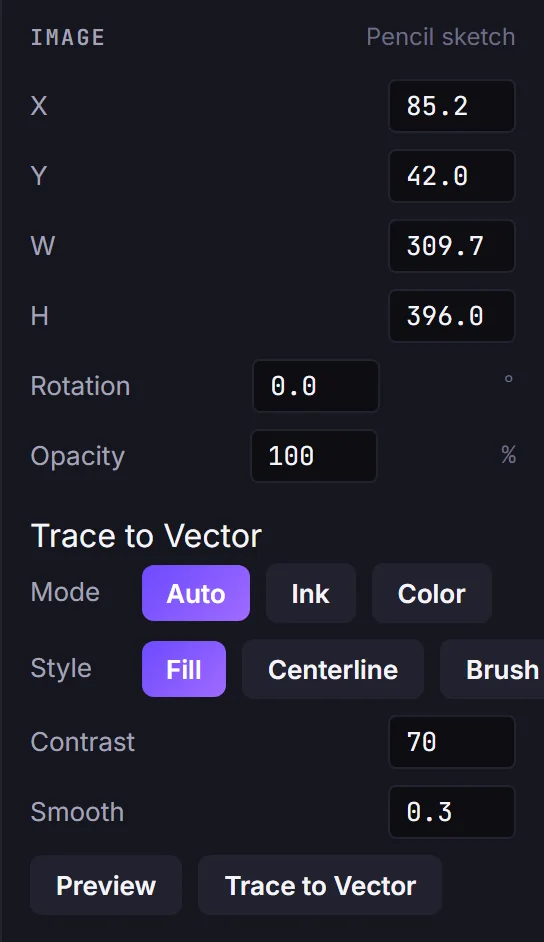
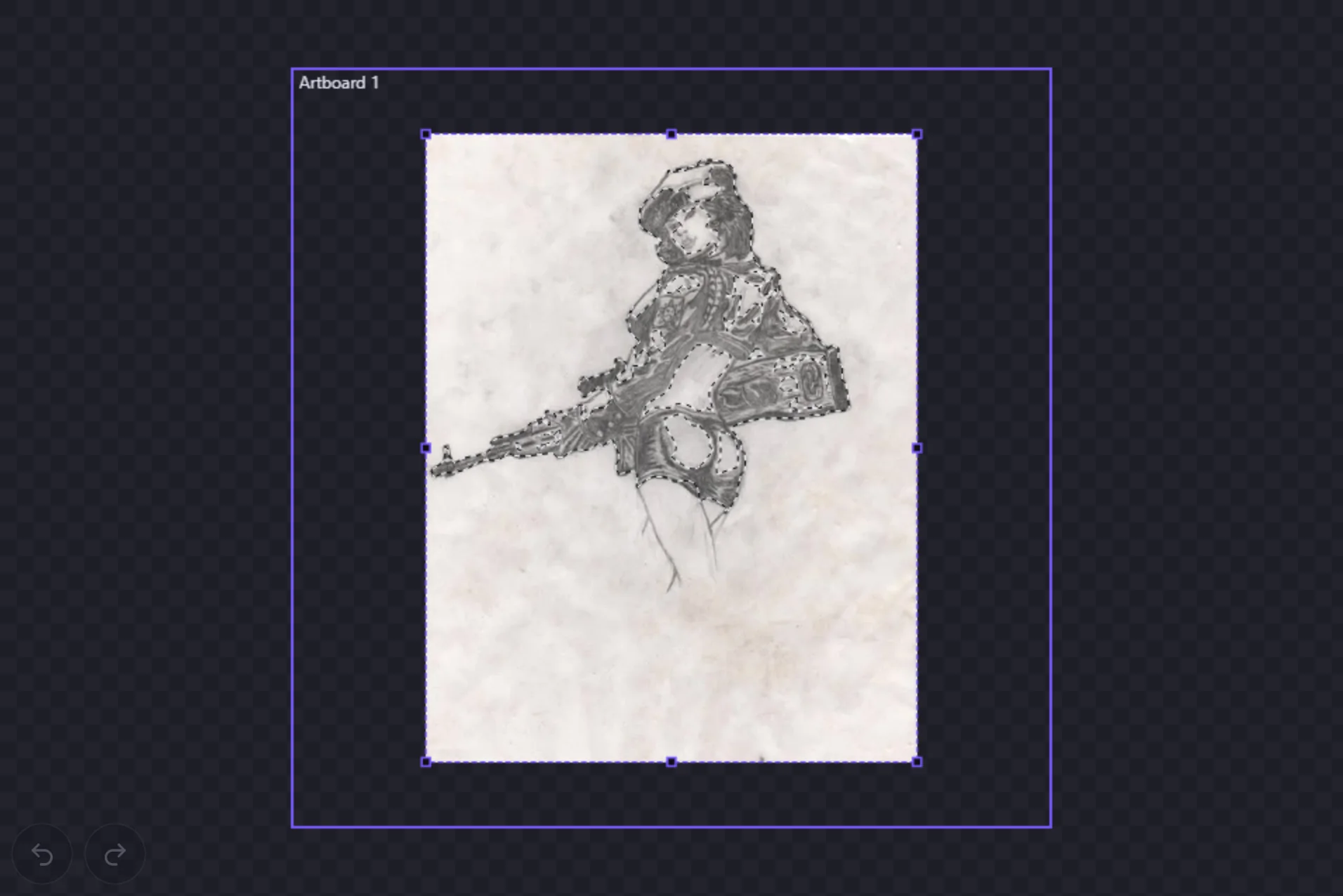
Two changes fixed most of it. Raising Contrast to 70 keeps only the darker strokes, so the light shading drops out. Lowering Smooth from 1.0 to 0.3 stops small features being simplified away: at 1.0 the face came out blocky and the lips were lost. Preview shows the result as marching ants before you commit.
Check what the trace kept
Trace to Vector turns the preview into one editable shape. Zoomed in on the face, it kept the eye, the brow and the lips, but not the nose: on a 563-pixel photo the nose is a couple of faint pixels, and no setting kept it. The back shading and the leg lines were lost the same way.
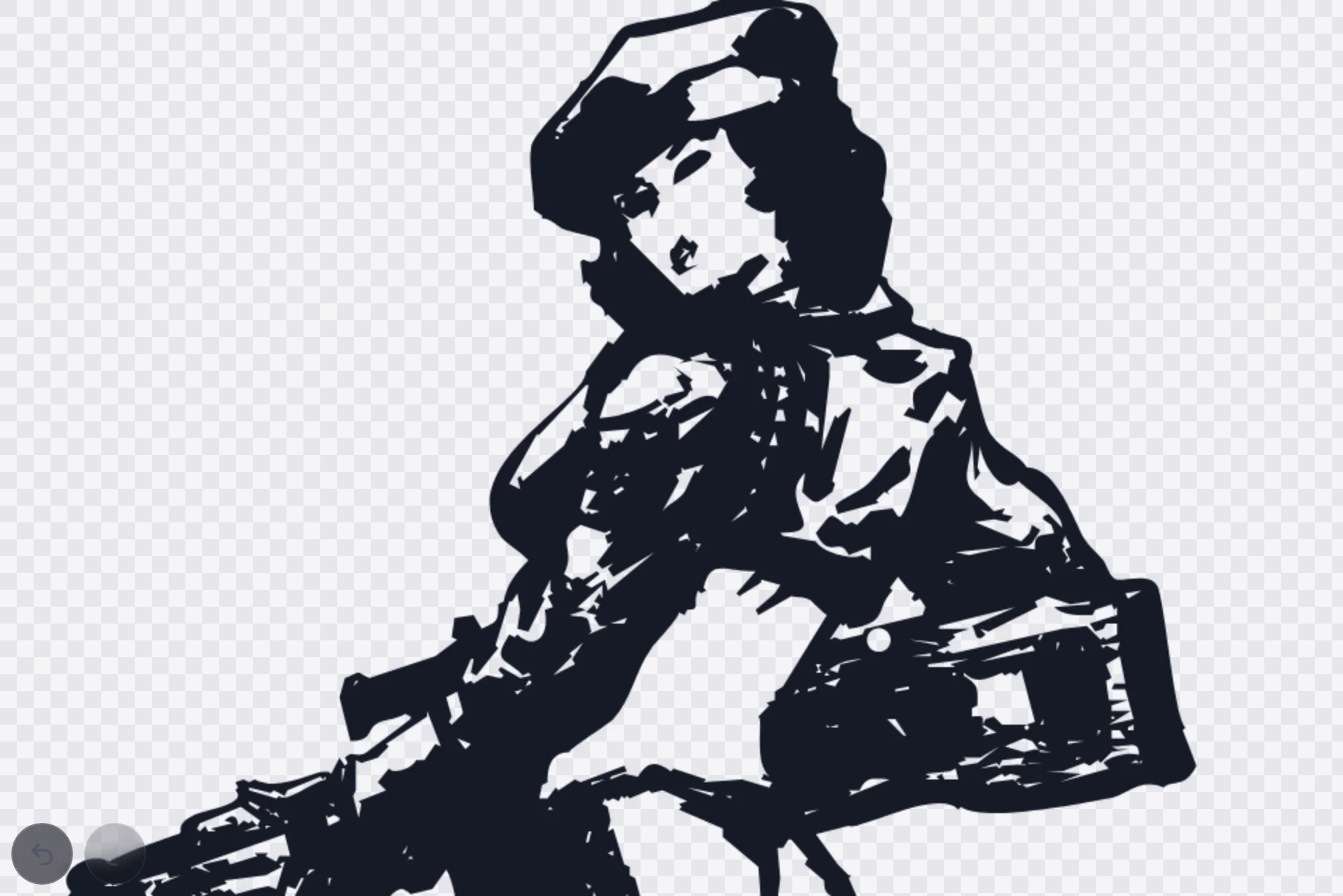
Refine by hand, on a separate layer
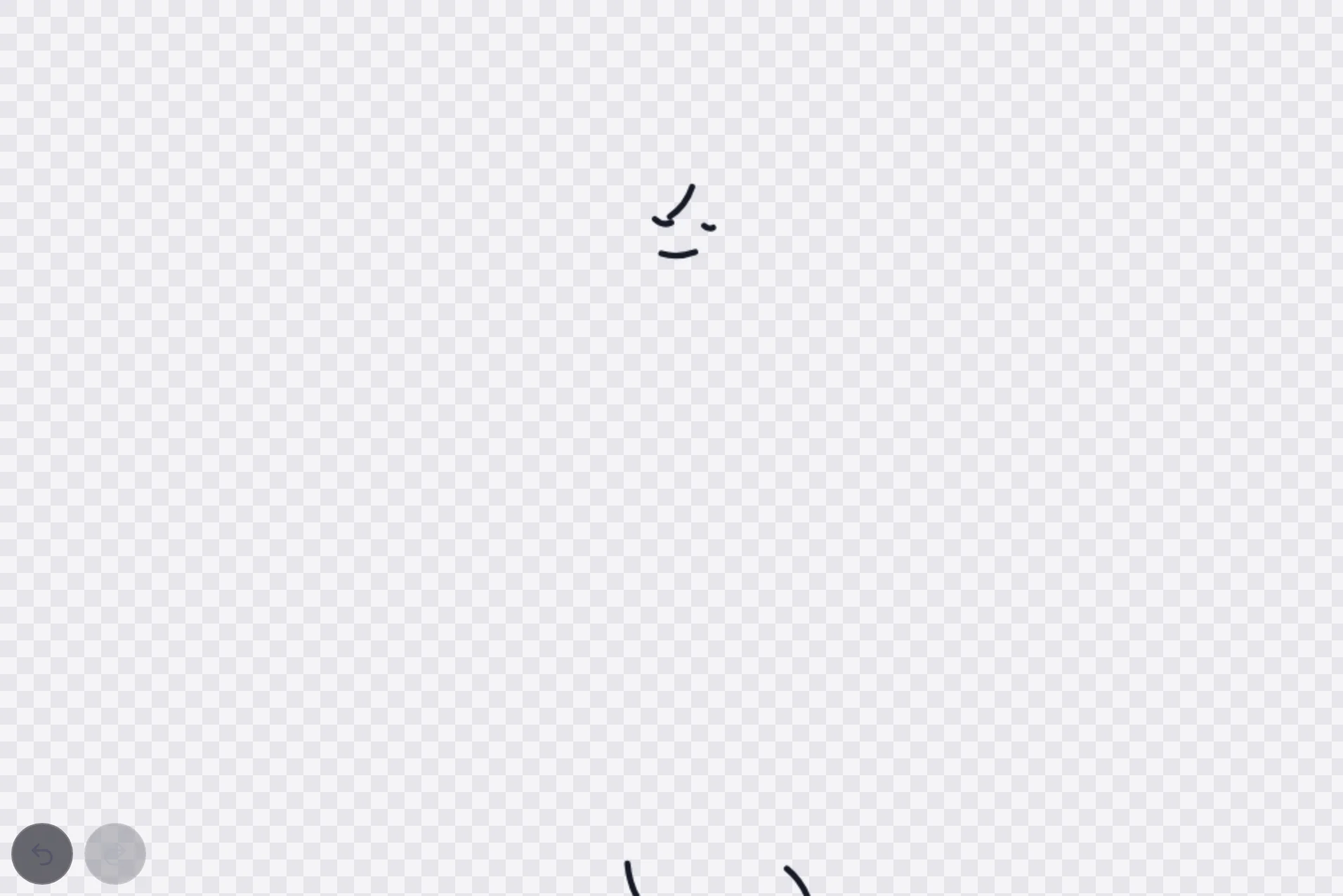
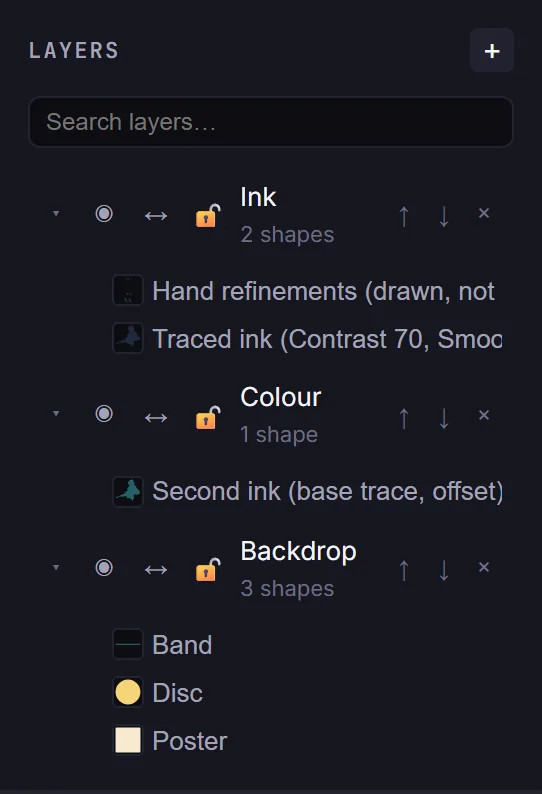
The missing lines were added following the pencil strokes in the sketch: the nose and a nostril, the upper lip, two leg lines and two fold lines in the shorts. They sit on their own layer, Hand refinements, above the untouched trace. To do the same, add a layer in the Layers panel and draw the lines on it with the Pen tool (P), with the sketch showing underneath. With the trace layer turned off by its eye toggle, this is everything that was added rather than traced:
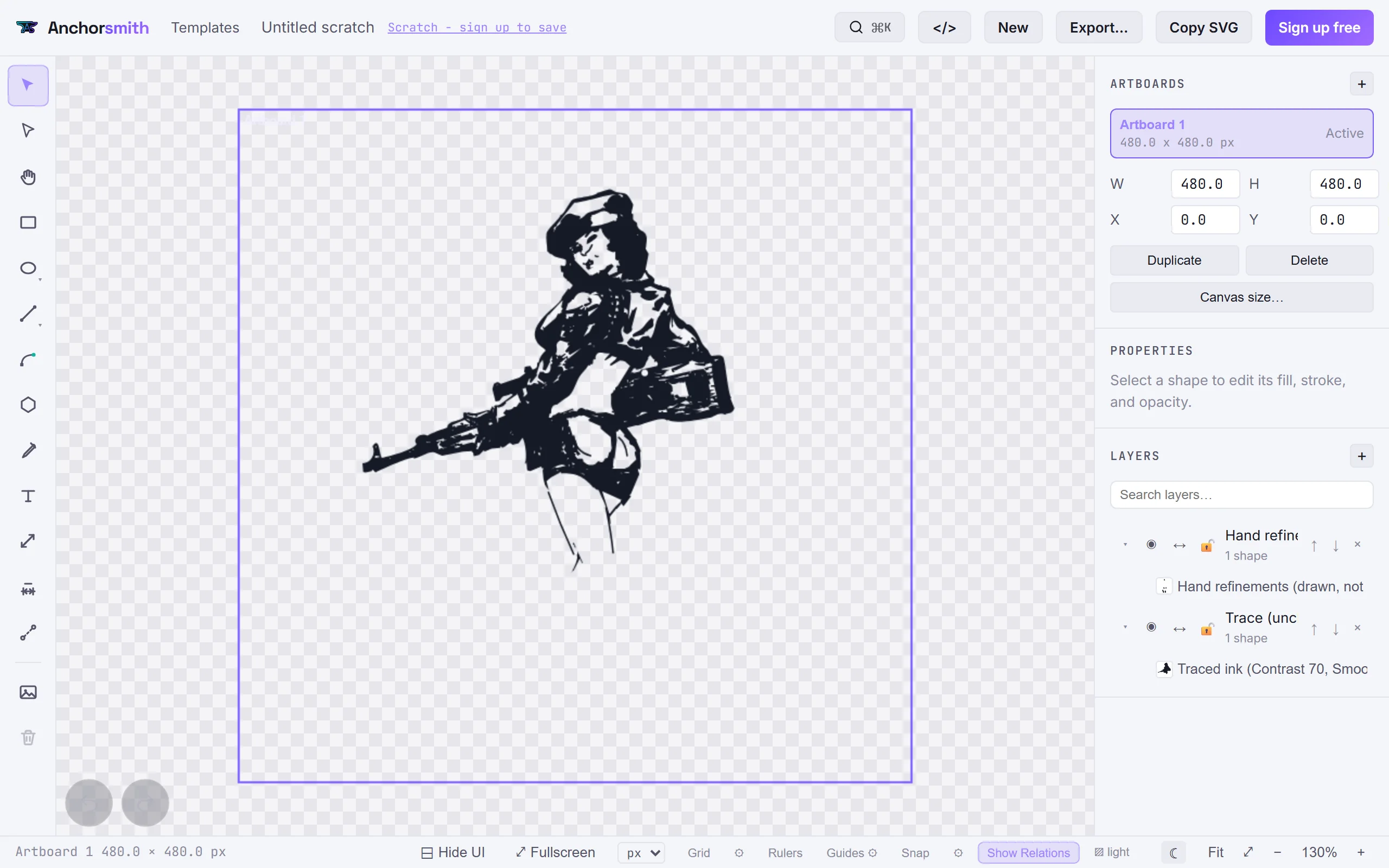
The rest of the poster is ordinary shapes and fills, built from the back to the front. Put the backdrop on its own layer below the trace: in the Layers panel press + and move the new layer to the bottom with its ↓ arrow (in the figures it is the layer called Backdrop, and the trace's layer is Ink). Sizes and positions below are in the document's units, typed into Transform (X, Y, W, H), where X and Y are the shape's top-left corner.
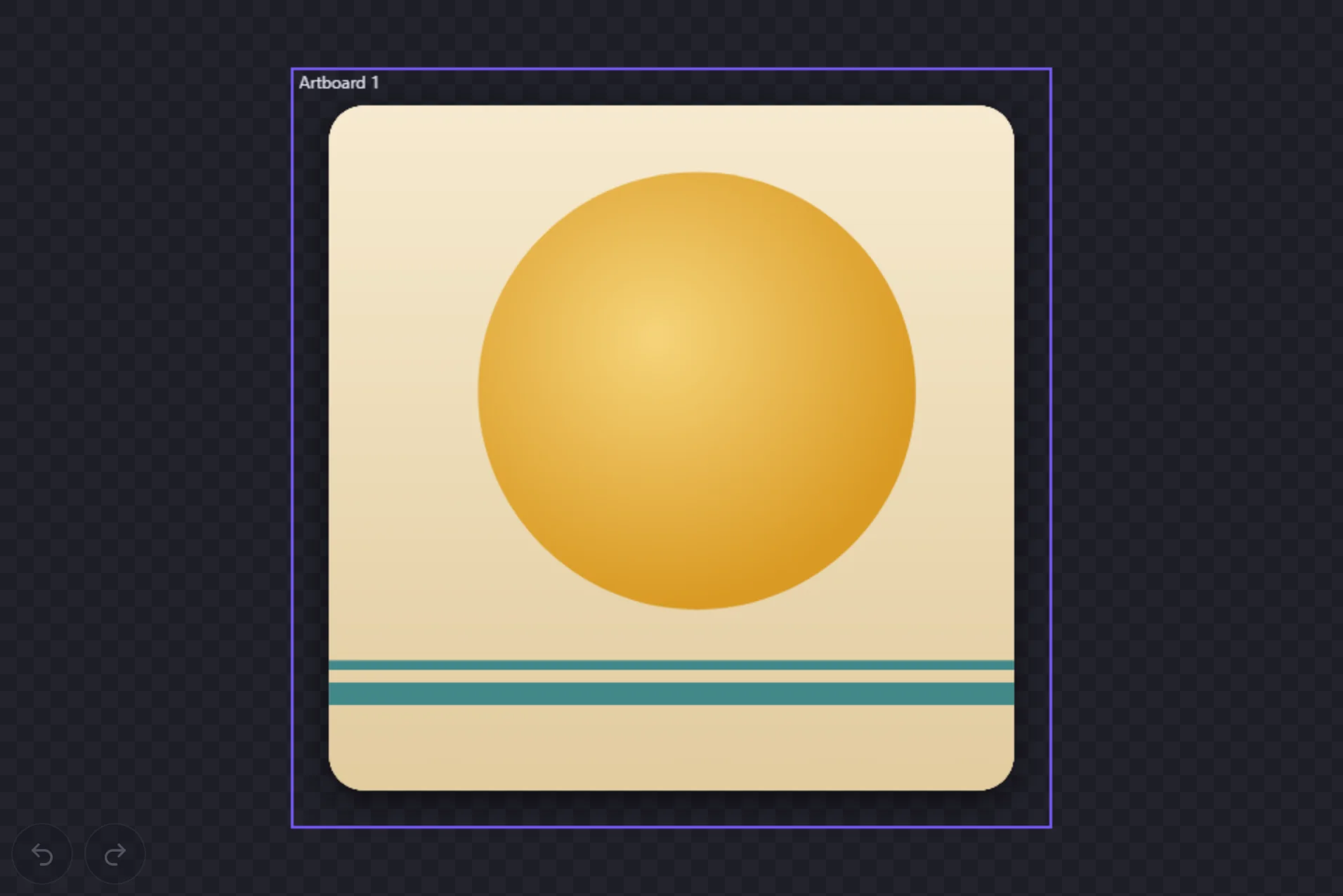
The cream poster panel
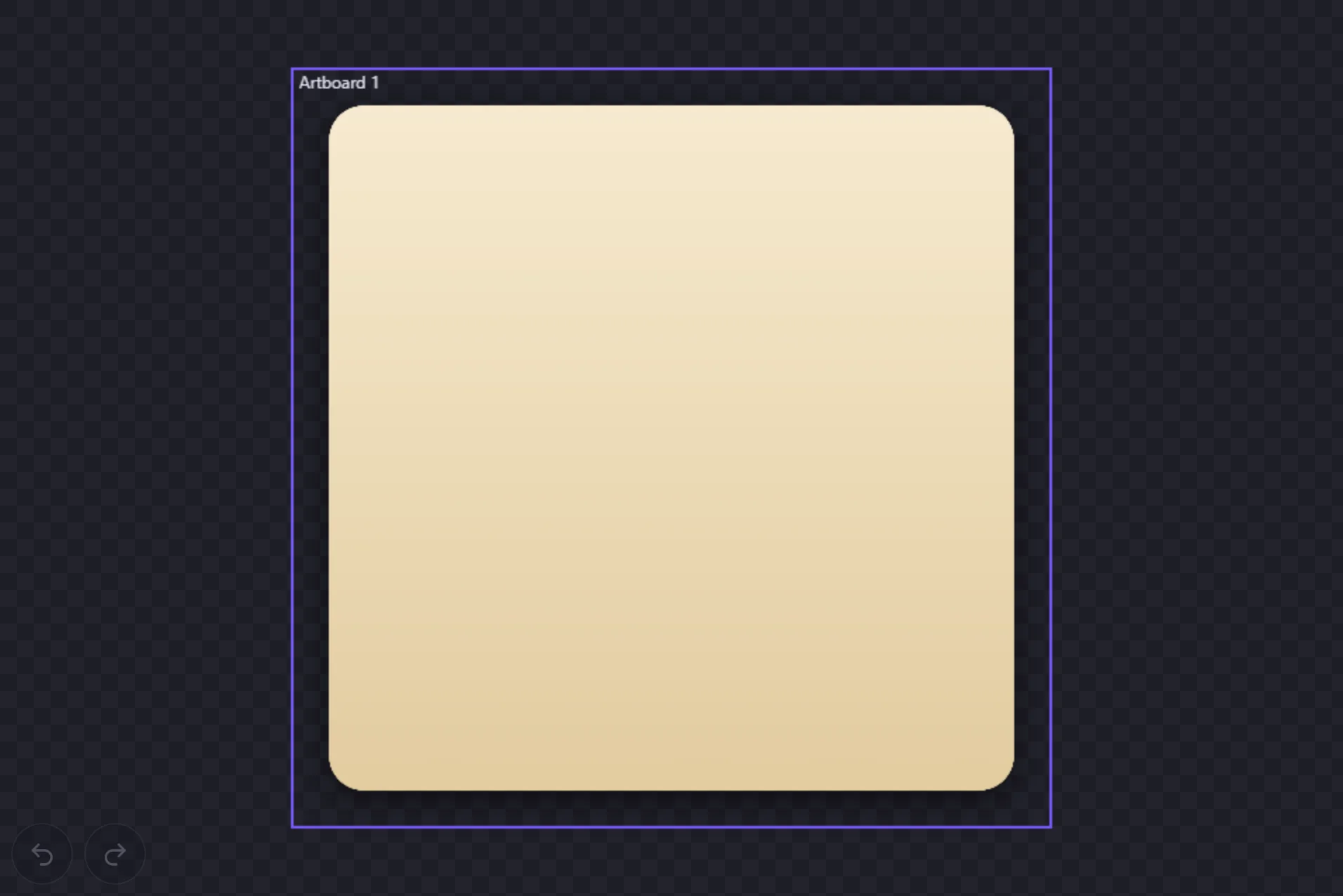
Draw a square with the Rectangle tool (R), then set W and H to 432 and X 24, Y 456. Type 22 into Round corners and press Round. Untick Stroke.
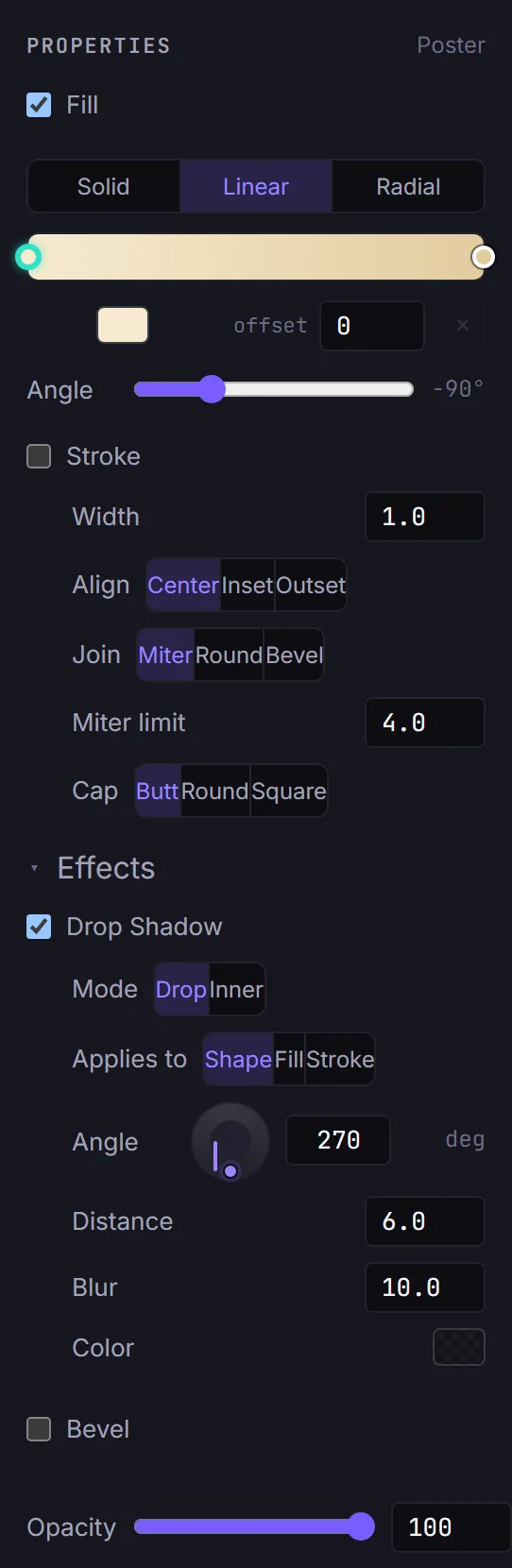
For the paper, set Fill to Linear and the Angle to −90°, so it runs top to bottom. Click each end of the gradient bar and set its stop color: #F7EAD0 at offset 0 and #E2CC9F at offset 1.
The lift off the page is a shadow. Open Effects, tick Drop Shadow, and set Mode Drop, Applies to Shape, Angle 270 (straight down), Distance 6, Blur 10, and a black Color with its A (alpha) at 55.
The mustard disc
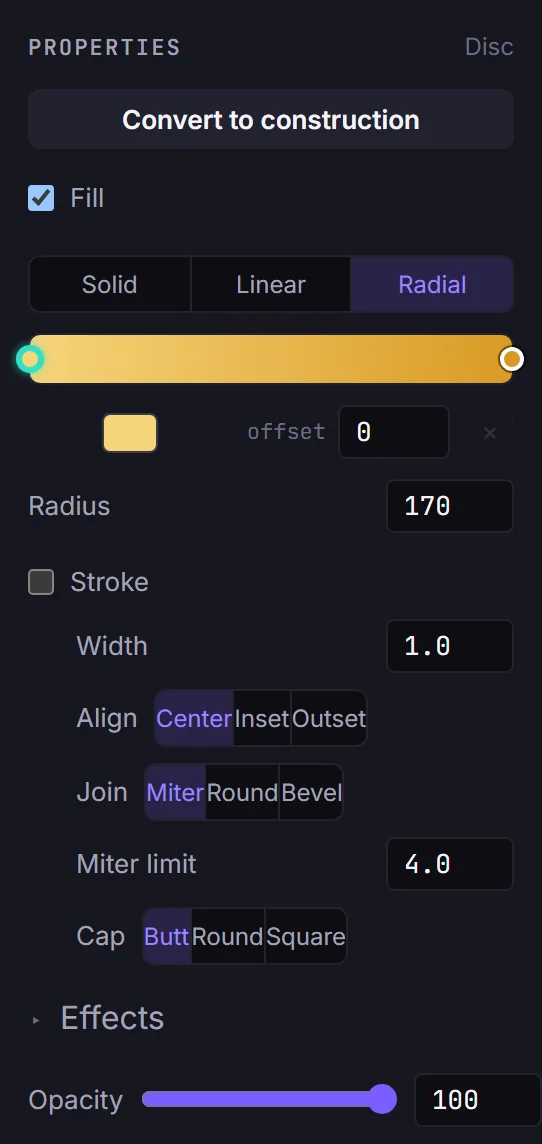
With the Ellipse tool (E), hold Shift and drag a circle, then set W and H to 276, X 118 and Y 414. Untick Stroke.
Set Fill to Radial, the Radius to 170, and the stop colors to #F6D47A at offset 0 (the bright middle) and #D99A24at offset 1 (the edge). In this piece the gradient's centre sits a little up and to the left of the disc's centre, which is what makes it look lit from above.
The disc is mustard on purpose. A red disc on cream behind a figure with a rifle reads as the rising-sun flag, which is not something this picture should say.
The pin stripes
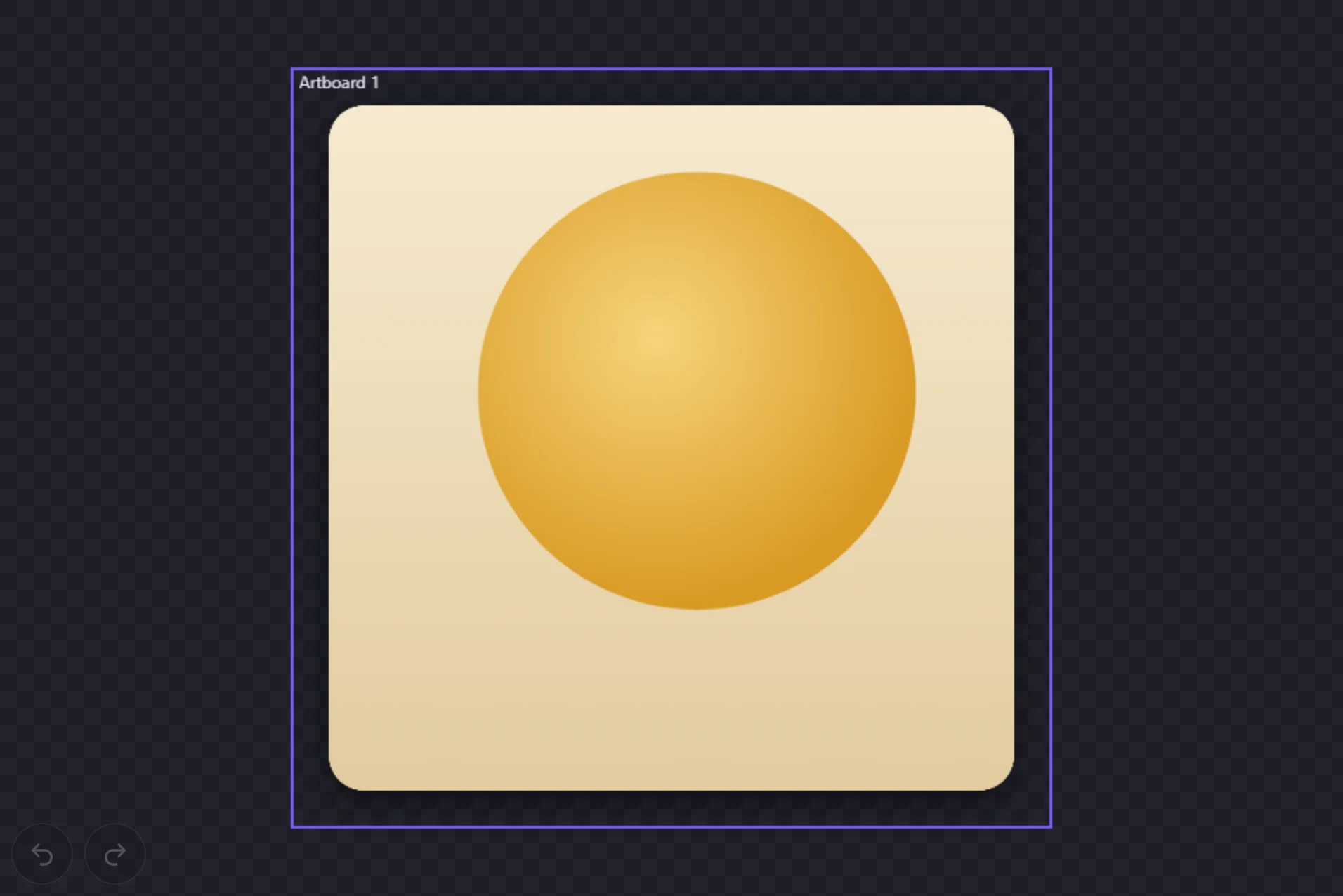
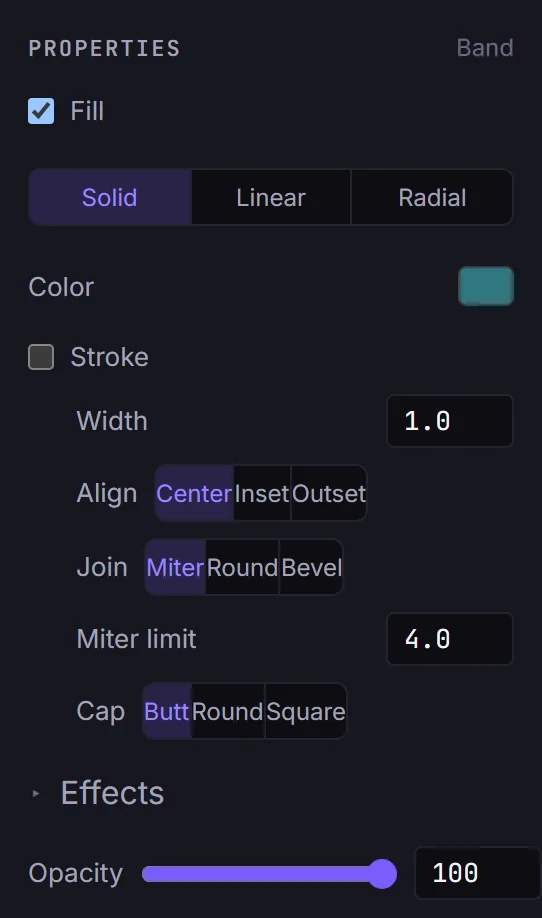
Two thin rectangles across the full width of the panel. Draw each with the Rectangle tool and set W to 432 and X to 24. The wide stripe is H 14 at Y 92, and the narrow one is H 6 at Y 106. Untick Stroke. (In the figures both stripes are one shape, Band; two separate rectangles look the same.)
Give both a Solid fill of teal #2F7F86 with its Aat 90 in the color picker, so a little of the paper shows through. That is the color's own alpha, not the Opacity slider, which stays at 100.
Ink the stencil
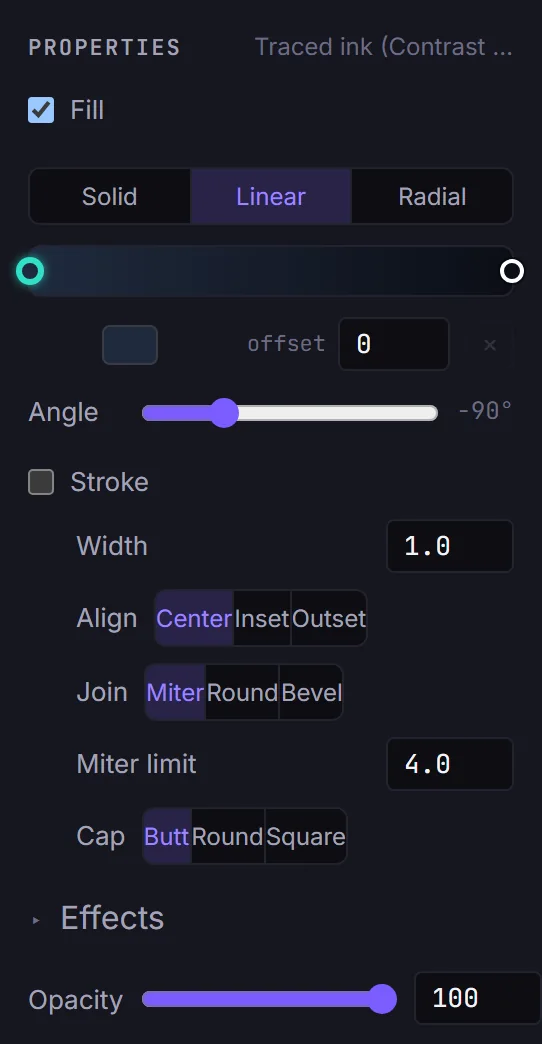
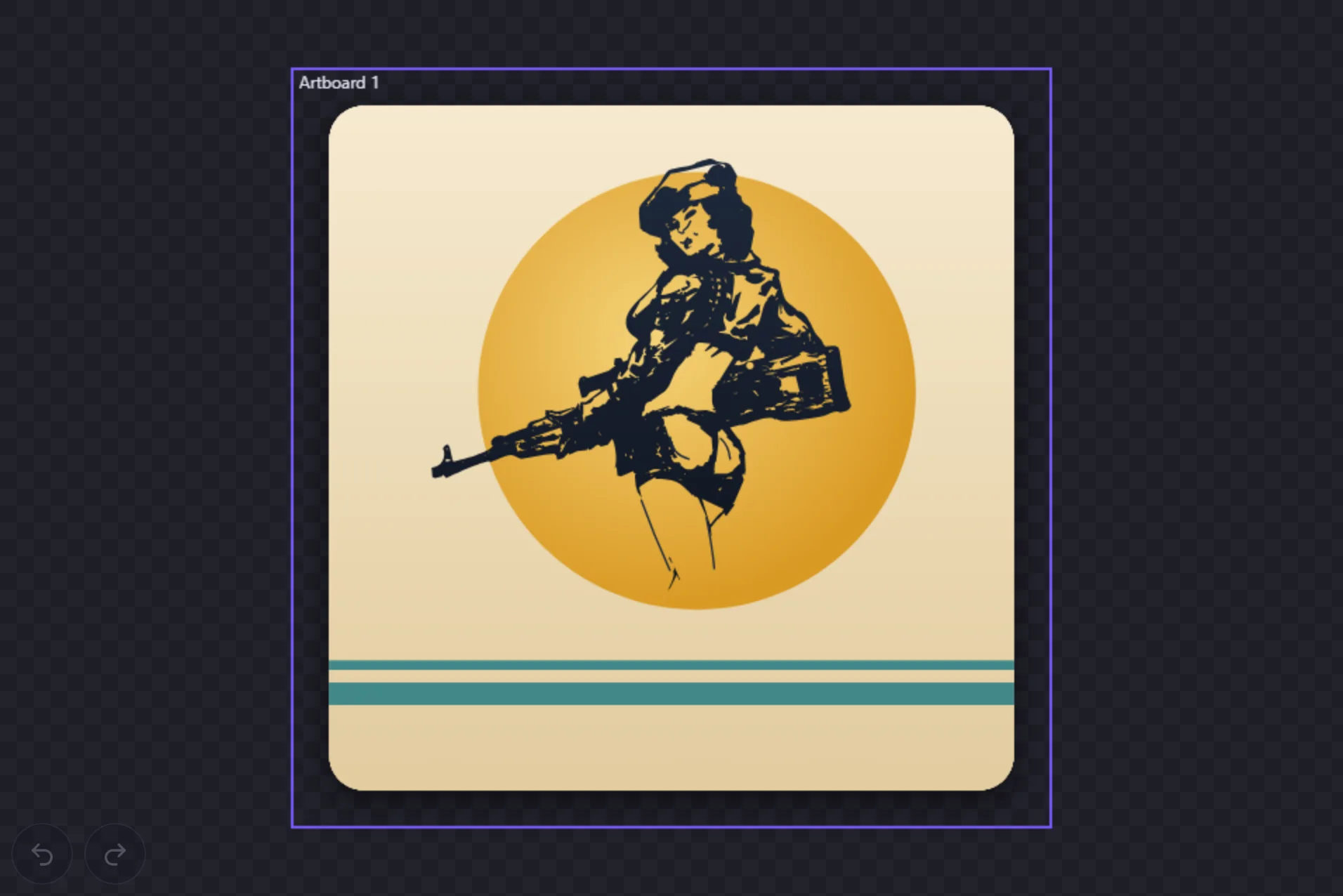
Back on the trace's layer (Ink), select the traced shape and untick Stroke. Set Fill to Linear at Angle −90° with #1F2A3D at offset 0 and #0B0E16 at offset 1: near-black, a shade lighter at the top. Give the Hand refinements strokes the same #1F2A3D so they read as part of the same ink.
Add the second ink, out of register
The teal shadow along the figure is a copy of the trace, printed a few points off, like a two-color screen print that did not quite line up.
In the Layers panel add another layer and move it with its arrows so it sits between Backdrop and Ink (it is Colour in the figure). Select the traced shape, duplicate it (Ctrl+D), and move the copy onto the Colour layer (moving a shape between layers is free). Give the copy a Solid fill of #2F7F86 with its A at 75. Then shift it 4 right and 3 down: add 4 to its X and subtract 3 from its Y in Transform.
See it in the showcase alongside the other pieces, or try it on a sketch of your own.