Why your SVG imports at the wrong size in Cricut
The common cause is not your cutter. It is usually an SVG unit mismatch: the file has vector coordinates, but the importing app has to infer what those coordinates mean in inches or millimeters.
SVG has two sizing systems
The viewBox describes the internal coordinate system. The width and height attributes describe the physical size. When a file only defines one side clearly, tools such as Cricut Design Space, LightBurn, or older illustration exports may use different pixel-to-inch assumptions and the same drawing imports at a surprising size.
How to avoid the scaling surprise
Check both width/height and viewBox
SVG files can contain a viewBox plus physical width and height. If one part is missing or authored with a different unit assumption, importing tools may infer a different physical size.
Use explicit physical units
For maker files, prefer SVGs that declare real dimensions such as mm or in instead of relying on pixel-only artwork dimensions.
Validate with a known test file
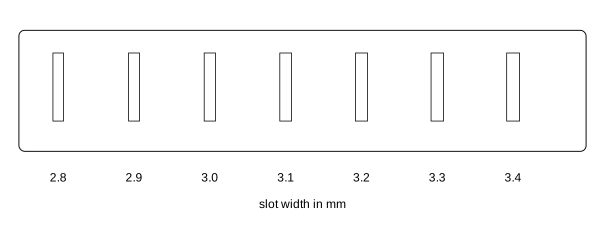
Import a simple calibration rectangle or kerf strip before sending a large job. If the test imports at the expected size, the pipeline is easier to trust.
Export with physical dimensions in mind
Anchorsmith is built around physical units, driving dimensions, and standards-valid SVG output. Try the editor free — SVG export is never watermarked. Pro unlocks PNG and PDF.
<svg width="160mm" height="60mm"
     viewBox="0 0 160 60"
     xmlns="http://www.w3.org/2000/svg">
  <!-- physical size and coordinate system agree -->
</svg>